
Find an answer
Choose the section where you need help, or search for a button name. Instructions beside each screenshot explain where to tap, what opens and how to complete the action. Tap a screenshot to enlarge it and read the fields.
THE PAW · FAQ
Find a section or button. Instructions beside the screenshot explain how to use it and what happens after you tap.

Choose the section where you need help, or search for a button name. Instructions beside each screenshot explain where to tap, what opens and how to complete the action. Tap a screenshot to enlarge it and read the fields.

? opens help for the current section. % shows directory or provider promotions; a red icon means active offers are available. The heart saves a card to favorites, and another tap removes it.
Home
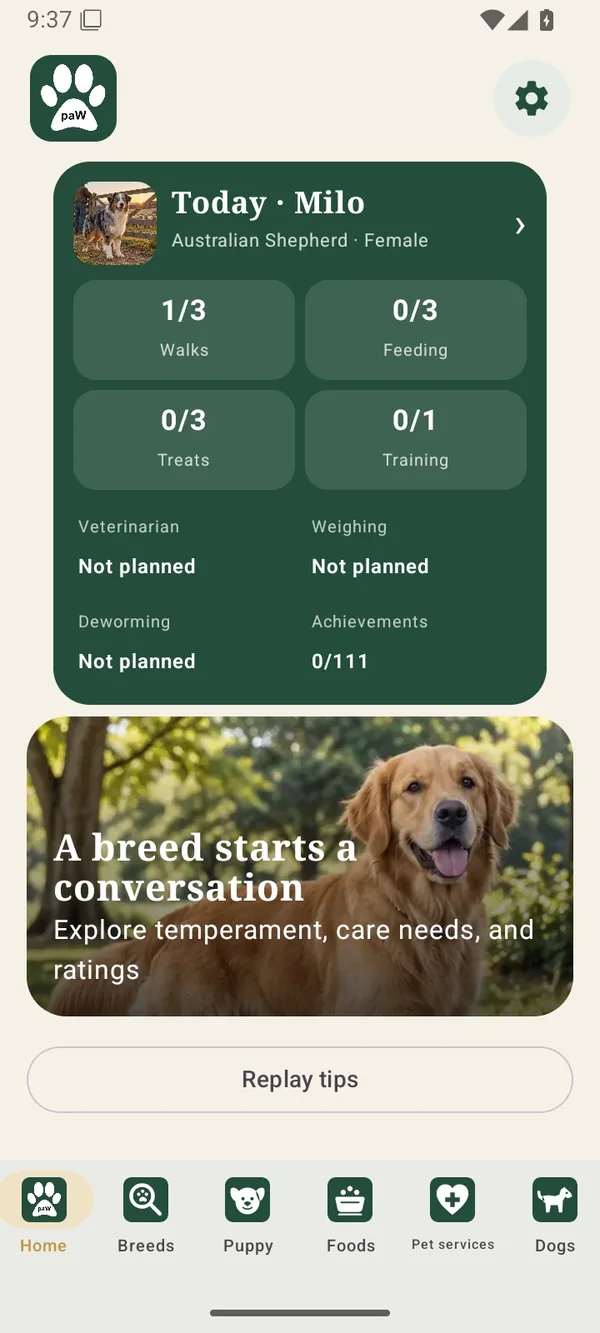
Your dog’s daily summary is at the top. Scroll down for articles, or use the six buttons at the bottom to open another section.
Bottom navigation → Home
The green card shows the dog’s name, breed, sex, daily progress and upcoming events. In each counter, the first number is completed actions and the second is the daily target.
Scroll down to reach articles and replay the introductory tips. Use the bottom navigation to change sections.
Buttons and actions ↓
Tap the name, photo or arrow at the top of the green card to open that dog’s profile, care, health and training. If you have several dogs, swipe between their cards and check the name before recording an action.
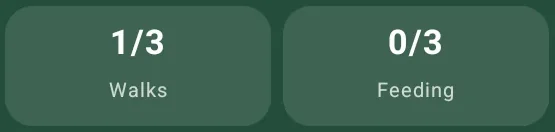
A short tap marks the next unmarked action for today. After a walk, for example, tap Walks to change 0/3 to 1/3. Completed and skipped slots are not credited again.
Hold the counter for 2.5 seconds to open this dog’s schedule and review or change its marks. A message appears if no schedule is set or every slot is already marked.
Tap after giving a treat to add the next mark within the daily limit. A 0/0 counter means the limit is not configured. Hold for 2.5 seconds to open Treats, set a limit and treat type, or edit an entry.
A short tap completes the next available task in this dog’s training plan. Record it after doing the exercise. If no task is available, a message explains this. Hold for 2.5 seconds to open the first-year or adult training plan available for the dog.
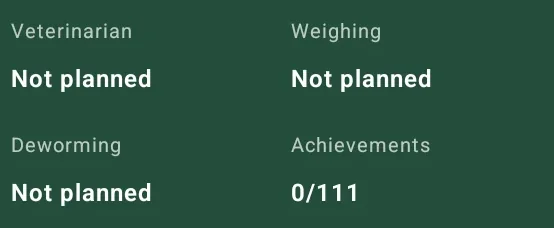
Below the counters are the next check-up, weigh-in and deworming dates. Tap a label to open its section. Not scheduled means no future date is set. The achievement counter opens the dog’s rewards.

Tap the gear above the dog card to open account settings, language, notifications, subscription and linked accounts. Use Back to return to Home.

Home shows the daily summary; Breeds opens the breed catalog; Puppy contains preparation and articles; Foods includes food and pet stores; Pet services contains clinics, grooming and boarding; Dogs opens your dog profiles. The highlighted button shows your current section.
Scroll below the daily card. Replay tips shows the short interface introductions again. Tap an article card to read its full text. Articles come from the website: routine list updates are checked once every 24 hours, with cached content available between checks.
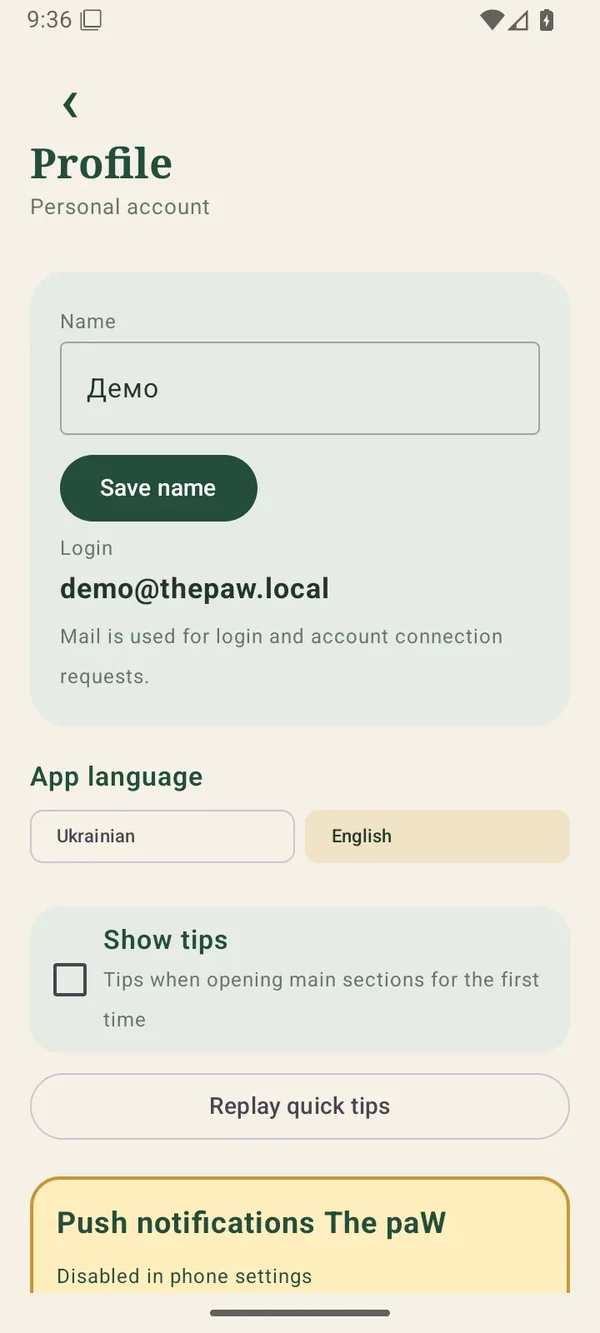
Home → settings gear
Open settings with the gear on Home. Change the display name, language, tips, notifications and access preferences here.
Your email is your login and is used for family access requests. These examples show a demonstration account.
Buttons and actions ↓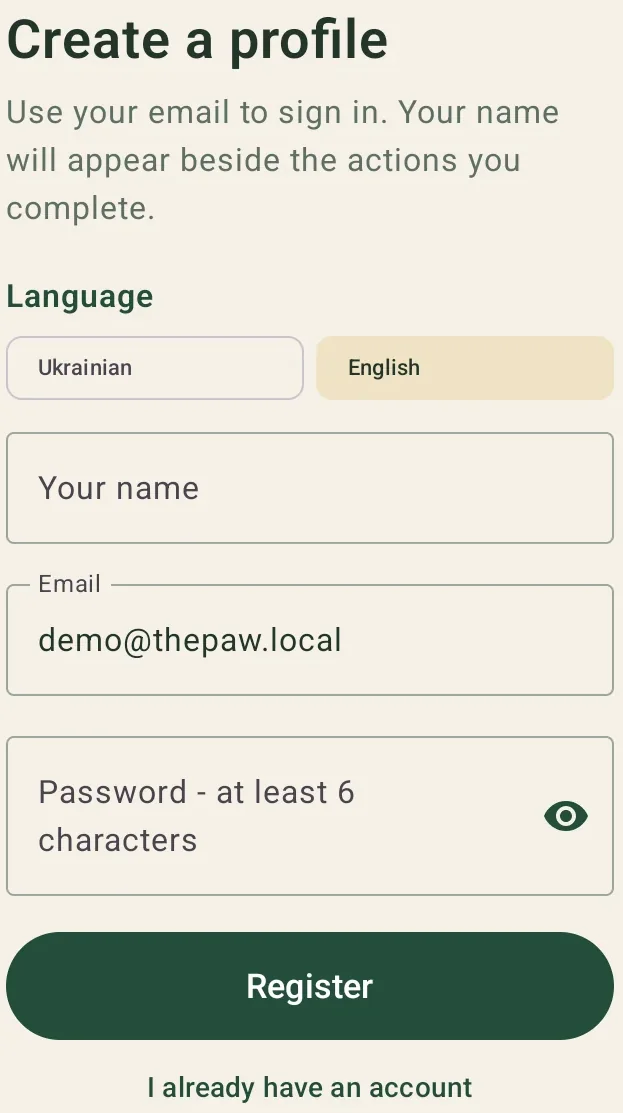
On the opening screen, choose a language and enter a name, email and password of at least six characters. Select Register. If you already have an account, choose I already have a profile and sign in with the same email and password. Registration and sign-in require internet.
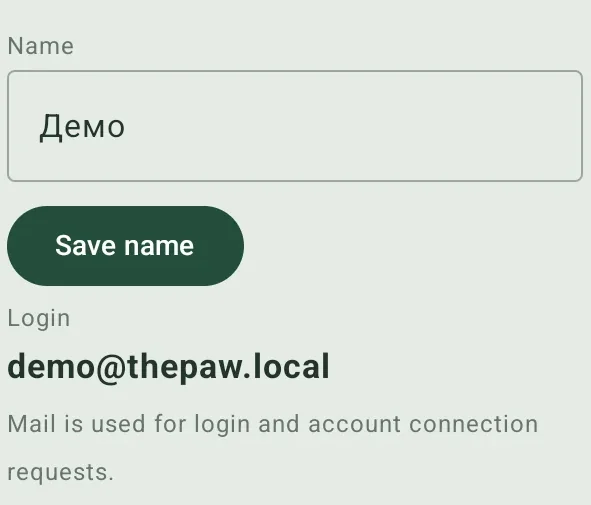
Edit Name in settings and select Save name. Other carers use this name to see who performed an action. The email below remains the login and does not change with the name.
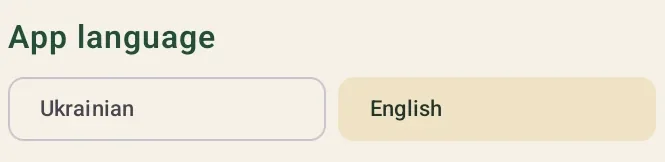
Choose a language in App language. The interface changes while dog profiles and care marks remain. To return to Ukrainian, open the same section and choose Ukrainian.
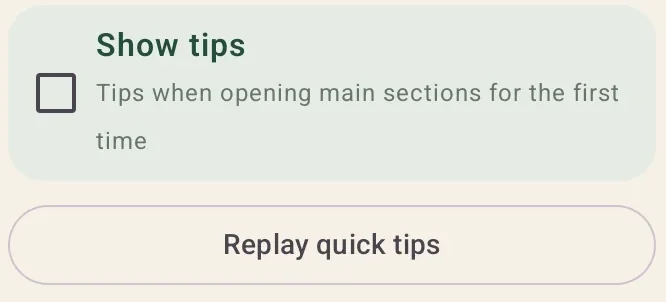
Show tips enables introductions when opening the main sections for the first time. Replay quick tips starts the introduction again. Home also has a Replay tips button. This does not reset care marks or training progress.
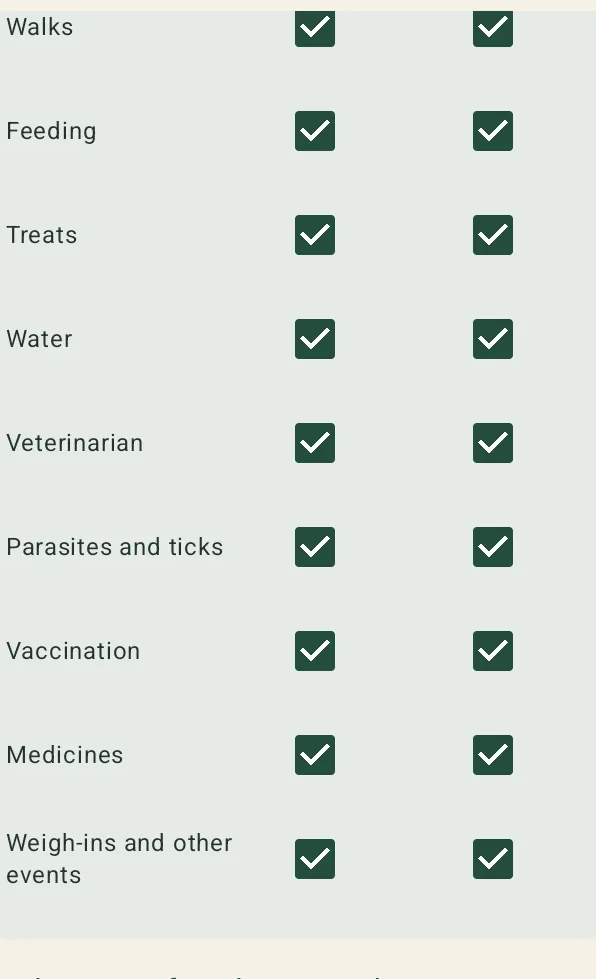
For push notifications, choose Allow push notifications and enable permission in Android settings. The table below separately controls phone notifications and in-app display for each event type.
Review walks, meals, treats, water, vet care, parasite protection, vaccinations, medicines and other events. Phone permission and the relevant table switch must both be enabled for push reminders.
Linked accounts share care marks. The person recording an action does not receive a notification about their own mark. Other participants receive it according to their notification settings. Unseen in-app notifications remain available for 48 hours and are no longer shown afterward.
Breeds
Search by name, filter by traits and open a breed card to read its characteristics.
Bottom navigation → Breeds
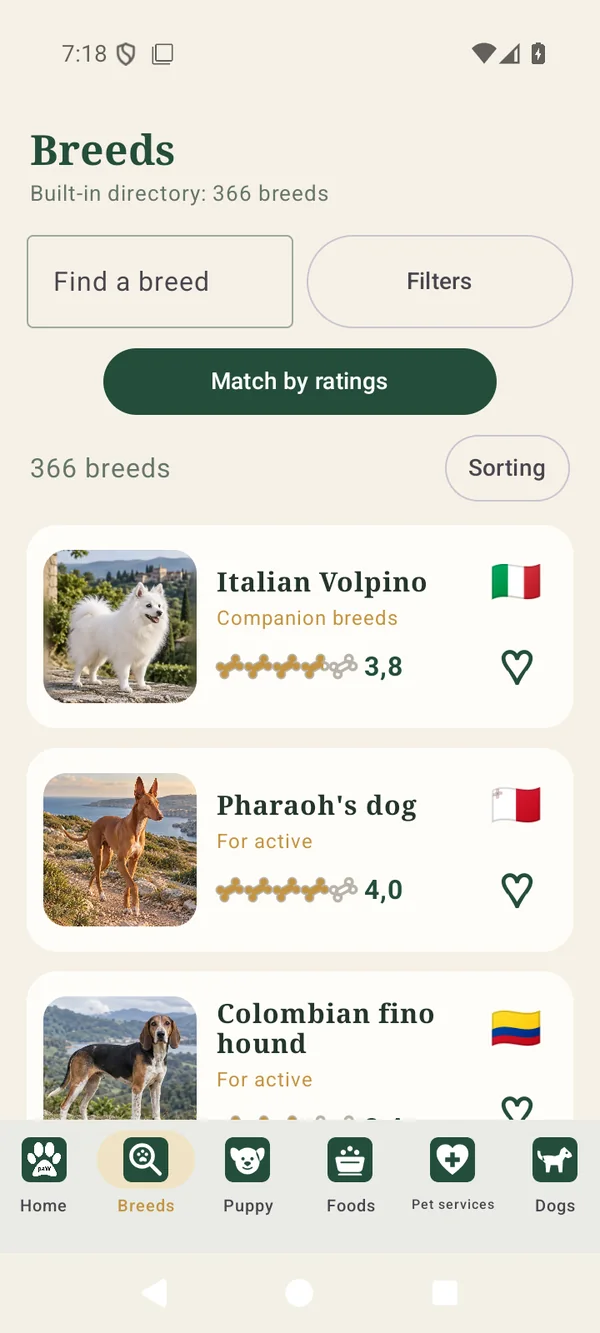
Each card shows a photo, name, class, country of origin, average characteristic score and favorite heart. Tap the card to read about the breed.
Search and filters work together. If no breeds remain, remove some limits or clear the search.
Buttons and actions ↓
Type part of a Ukrainian, English or alternative breed name. Results narrow while you type. Clearing the field removes the query while keeping your filters.
Open Filters to show favorites, choose a breed class or select available traits. All classes removes the class limit. Clear resets regular filters; score thresholds have their own reset button.

This button expands five minimum-score sliders: human orientation, learning, animal aggression, health and breed risks, and ease of care. Adjust the sliders to keep breeds meeting every selected minimum. Reset scores removes these thresholds.

The button beside the result count cycles through alphabetical, reverse alphabetical and random order. Tap until the desired label appears. Search and filters remain active.

Tap the card for origin, temperament, care and explanations of the characteristics. The bones and adjacent number show the average characteristic score, not owner reviews. The flag identifies the country of origin.

Tap the heart to save a breed. Tap again to remove it. To return to saved breeds, open Filters and enable Favorites.

Inside a breed card, choose the available breeders button below its photo. The directory opens with that breed selected. Add a city or other filters to narrow it further. Linked breeds in a breeder card open their breed descriptions.

Find Add breed photo inside a breed card, choose a JPG, PNG or WebP up to 8 MB and submit. You must be signed in. One account may submit one photo per day. An administrator reviews it before it becomes visible.

Tap Share PDF at the top of a breed card. The app prepares a breed information file and opens the system sharing menu. Choose an app or a save location. Creating the file does not change favorites or breed data.
Puppy
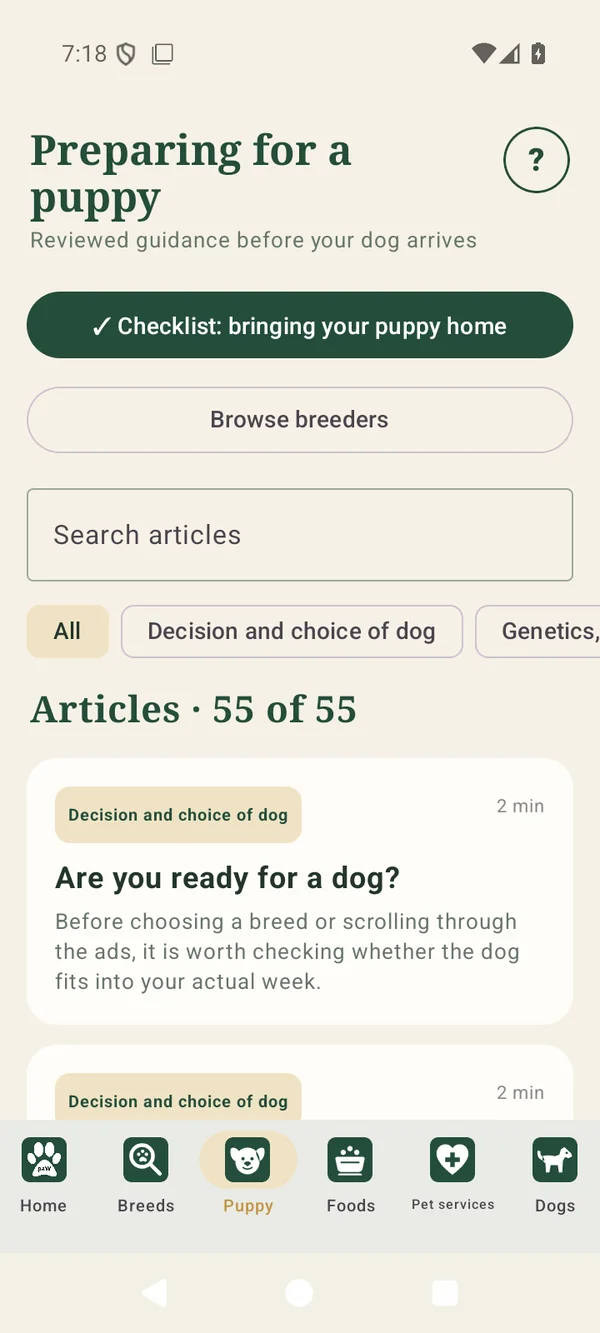
Find the preparation checklist, articles and the Ukrainian breeder directory here.

Bottom navigation → Puppy
Start with the checklist to review preparations. Find an article using the search field or a category.
Open the breeder directory using the button above article search.
Buttons and actions ↓
Open the puppy pickup checklist and tick tasks you have finished. You can add up to ten custom items. Before preparing for another dog, clear the completion marks while keeping the list itself.

Open the breeder list, then search by name, breed, city or owner. Use Filters to narrow it further. The top back arrow returns to Puppy.
Enter a topic in Search articles and choose a category to narrow it further. Tap an article card to read. After closing it you can mark it as read; the check mark on its card removes that status.
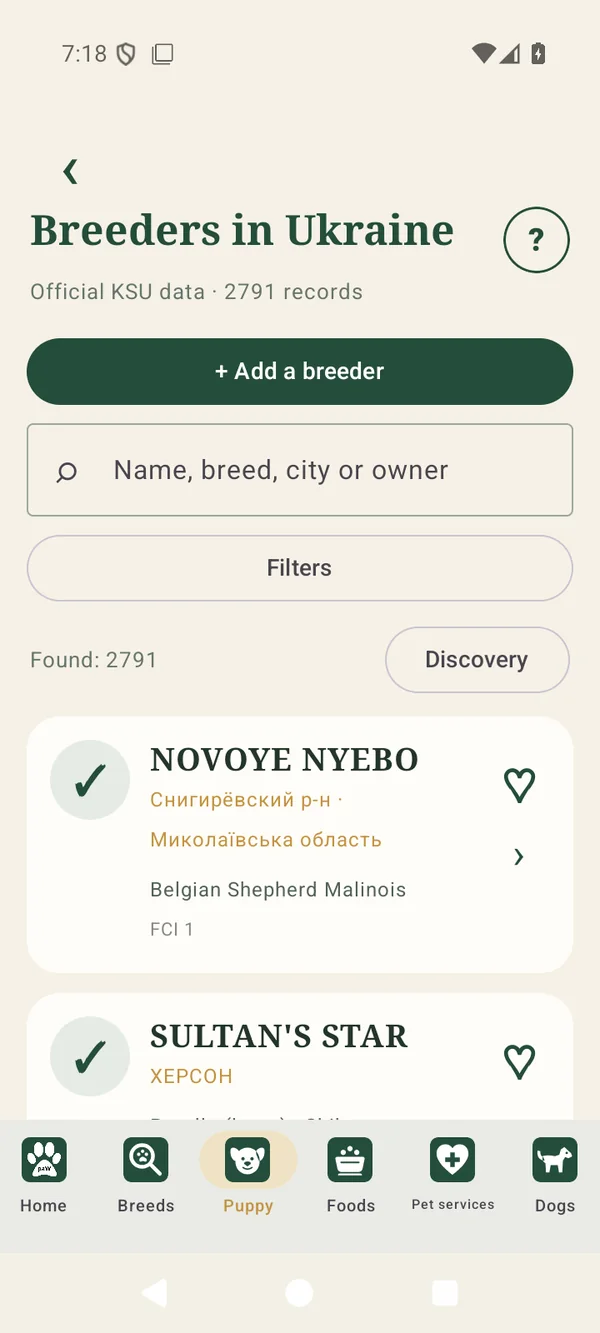
Puppy → Browse breeders
List cards show name, city, breeds and FCI groups. Tap one to open its contacts and details.
Search and filters narrow the list without changing breeder information.
Buttons and actions ↓
Enter part of a name or another clue below the add button. Results update to match the text. To select a specific breed or city, use Filters.

In Filters, find breeds in the dropdown and select the ones you need. City and FCI group are separate choices. Enable Favorites to show only saved breeders, then apply. Clearing filters broadens the list again.

The check indicates a verification basis in KCU records. Open the verification panel inside the card to read it. It concerns the breeder record and does not replace checking a particular puppy’s documents.
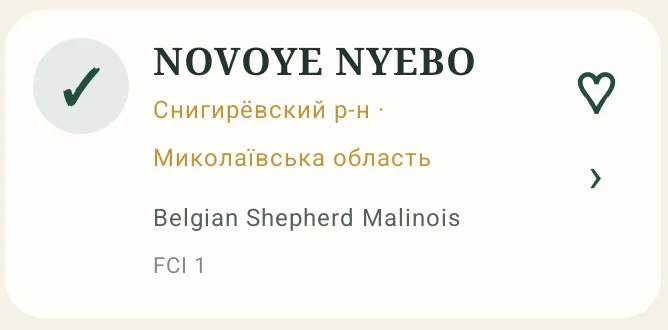
Open a breeder card and tap a linked breed to read about it. The FCI groups heading explains the classification; selecting a particular group opens its explanation.

Tap Add a breeder, enter a name, breeds and contact phone, add other details and submit. The form goes to an administrator for review. Submission does not immediately publish the breeder.
Foods
The top button in Foods opens pet stores. Food search and the food catalog are below it.
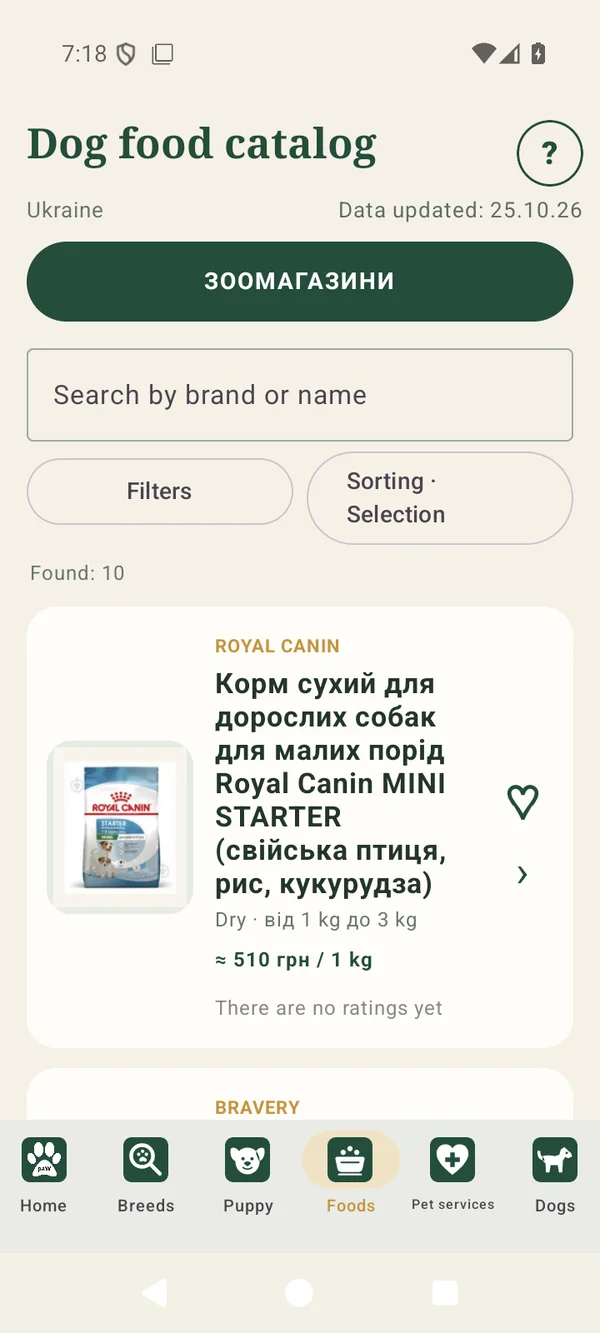
Bottom navigation → Foods
Search by brand or product name and open a card for ingredients, characteristics and seller offers.
The PET STORES button above search opens the store directory.
Buttons and actions ↓
Tap the large green button above food search to open the store directory with its own search, regions, cities and filters. Use Back to Foods at the top to return.

Enter a brand or part of a product name below Pet stores. Search respects your active filters. If a product is missing, check the spelling and remove unnecessary limits.
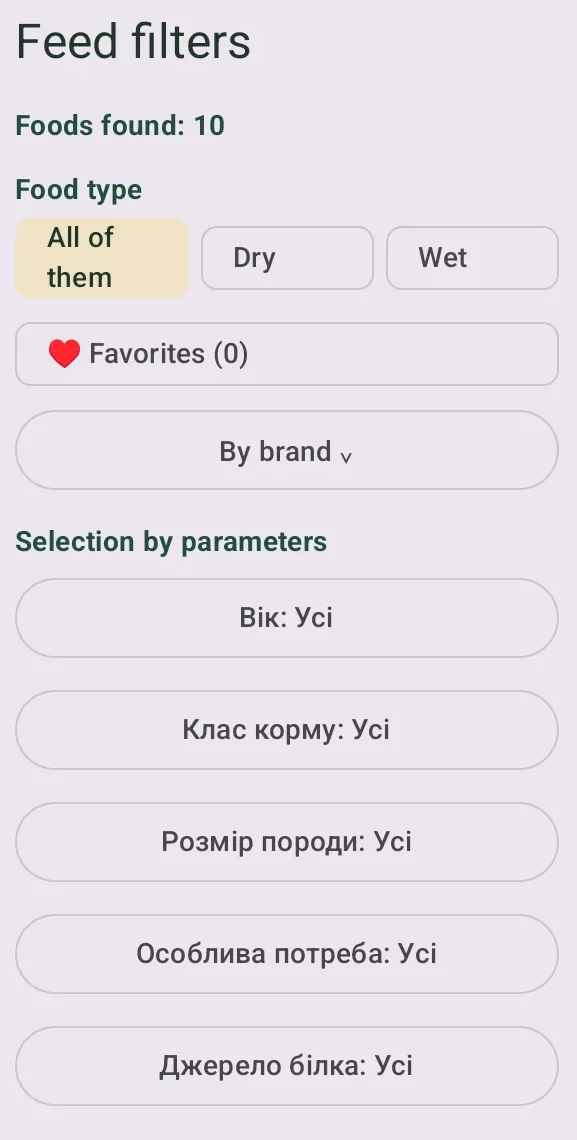
Open Filters and select food type, dog parameters and other characteristics. In the brand list, the first tap includes a brand, the second excludes it and the third clears the selection. A separate field searches the brand list.
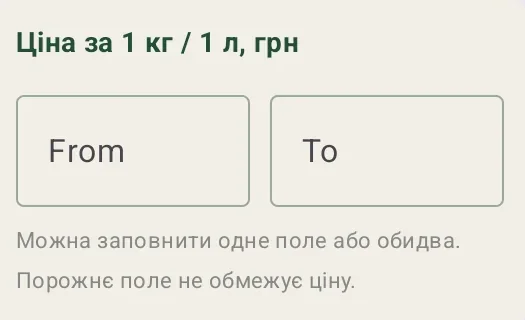
In Filters, enter the minimum and maximum UAH price per kilogram or liter. You may fill only one field; a blank field leaves that side unrestricted. Apply to see foods in the selected range.
Open Sorting next to Filters and choose an order. Choosing price again reverses its direction. Results still follow your search and filters.
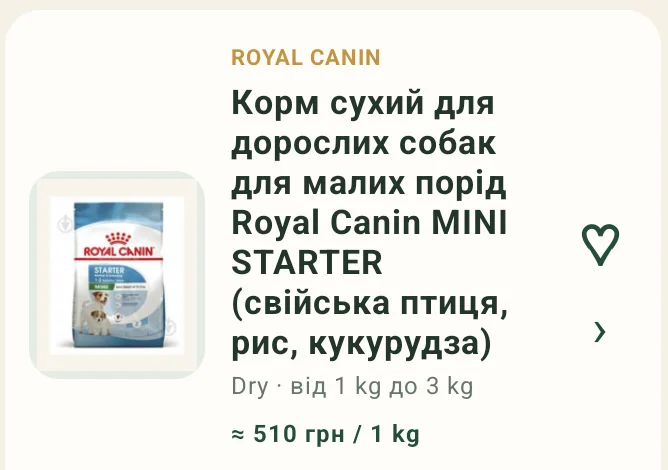
Open a card for the description, ingredients, characteristics and sellers. When comparing prices, check the unit and pack size displayed beside the amount. Tap the heart to save or remove the food.

In a food card, tap WHERE TO BUY or scroll to the seller offers. Check pack size, price and availability. A product link opens the seller’s page; a linked store card contains the store’s contacts. A store price can change after the catalog was updated.

In the seller section, select Add a store and price in an empty slot, or Add price beside a seller. Enter the store, product URL, pack size and UAH price, then submit. The suggestion is reviewed and does not immediately replace a published price.

The exclamation mark inside a food card lists information missing for that product. Read which details are unavailable. It describes data completeness, not the food’s quality or safety.
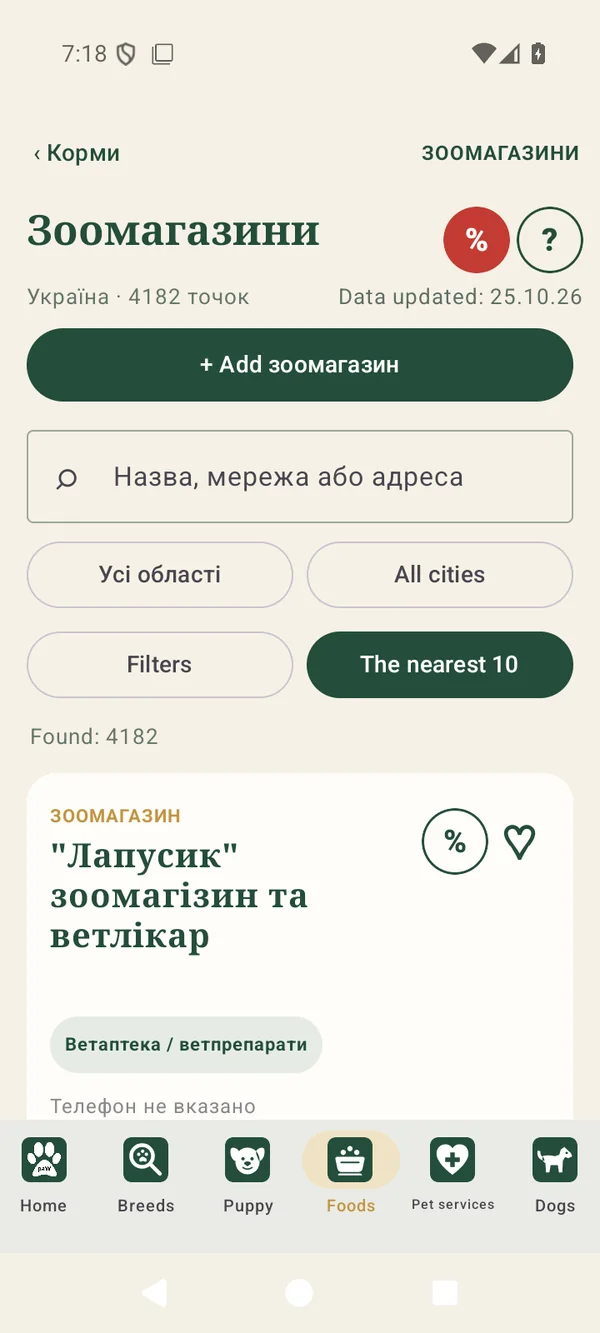
Foods → PET STORES
This store directory is reached from Foods. Search for a name or narrow the results by region and city.
Tap a store to open its card. The percent and heart icons open promotions and favorites.
Buttons and actions ↓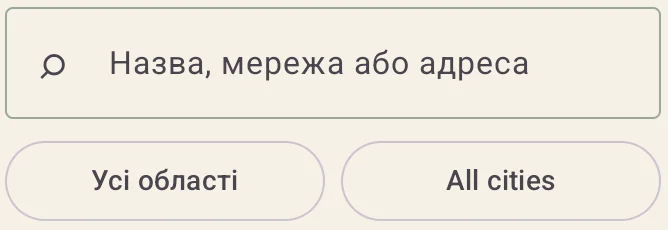
Enter a store name, chain or part of an address. Optionally choose a region and city from the dropdowns. All regions and All cities remove those location limits.
Nearest 10 uses your location to select nearby stores. Allow location access if you want this search. Without permission you can still search by name, region or city.
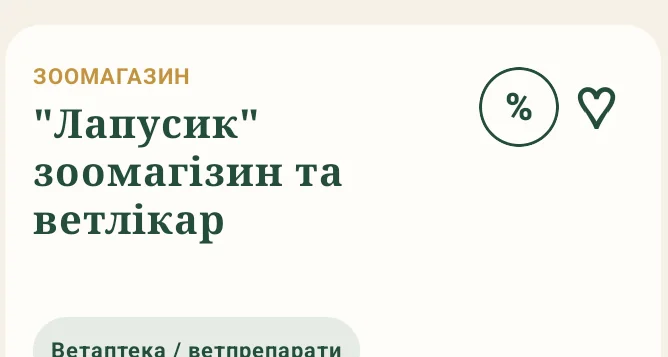
Tap the name or card to open a store. Its page shows address, contacts, hours and features where available. Not specified means the information is missing from the record.

Call opens the phone dialer with the saved number. Route sends the address to a maps app. A button can be unavailable when its contact data is missing. Check the store address before traveling.

Use Add at the top of the directory to suggest a missing store. Enter the name and contacts, check the address and submit. An administrator reviews it before publication.
Pet services
Switch between three tabs to choose a service type. Pet stores are separate, inside Foods.
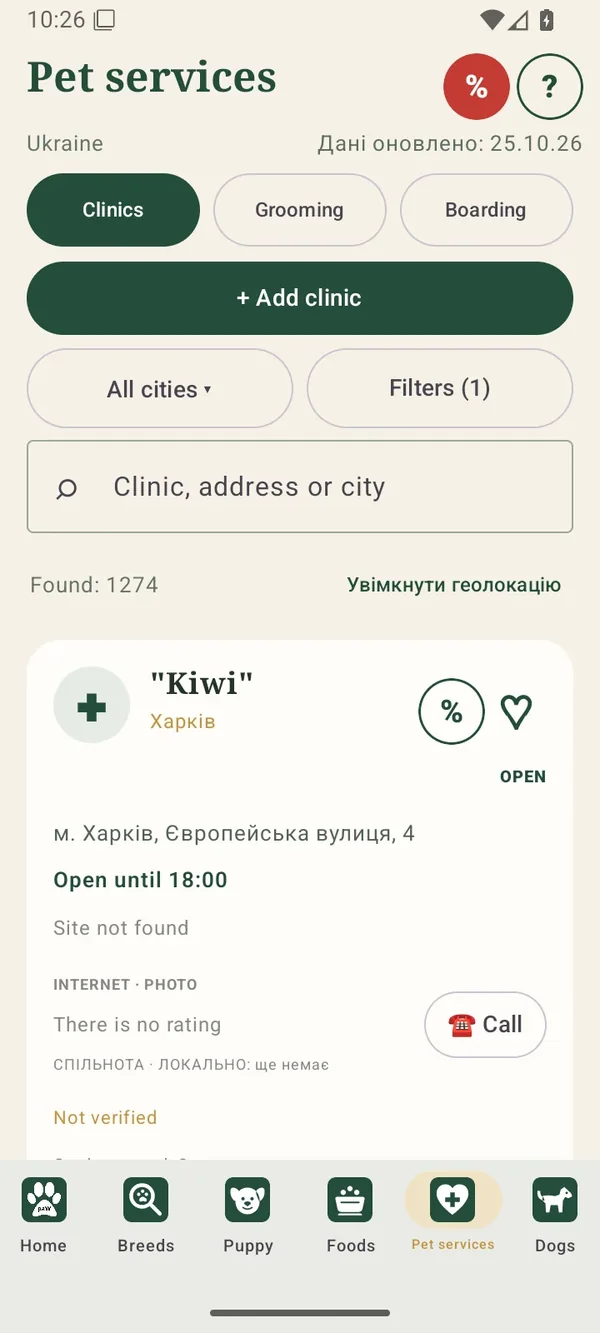
Bottom navigation → Pet services
Choose Clinics, Grooming or Boarding. Select a city, enter a name or address and apply service filters.
Open a result for contacts, directions, details and reviews.
Buttons and actions ↓
The buttons below the heading switch between clinics, grooming and boarding. The selected tab is green. Choose another tab to search that type of service, then review its available filters.

All cities opens the city choices available in the directory. Filters refines services and other conditions. Clinics and grooming offer service filters; boarding includes animal type, supervision and additional conditions. The filter count indicates active limits.

Enter a known detail below the filters. Search runs in the selected tab. To broaden results, clear the text, choose All cities or remove unnecessary filters.
Tap Enable location and allow access in the system prompt to find nearby providers. Without permission you can continue searching by city, name or address.

The button above the city selector opens a form for the selected provider type. Enter the name, address and contacts, then submit for review. To change an existing record, open its card and suggest a correction.
In a provider card, choose Call beside the relevant number. The phone app opens with that number entered; you confirm the call there. If several numbers are listed, check which number your button belongs to.
The button beside a phone number tries to open it in the selected messenger. Telegram or Viber must be installed. The messenger determines whether that number has an account. If it cannot open or the account does not exist, use a phone call or another listed contact.
Choose Open website and check the domain displayed beneath it. The link opens in a browser. Instagram and Facebook buttons open the provider’s corresponding pages. When no resource address is stored, there is no available link to it.
Route passes the provider’s address to a maps app. Check the destination and choose your travel mode there. If an exact address is missing, confirm the location by phone first.

Leave a local review opens a score and review text. Saving keeps this clinic review on the current device; Change my review lets you edit it. This score is separate from the internet-source rating. Public moderated breeder reviews use a different form.

Tap the heart in a provider list or detail card. Tap again to remove it. To find saved places, open Filters in the relevant service tab and select favorites.
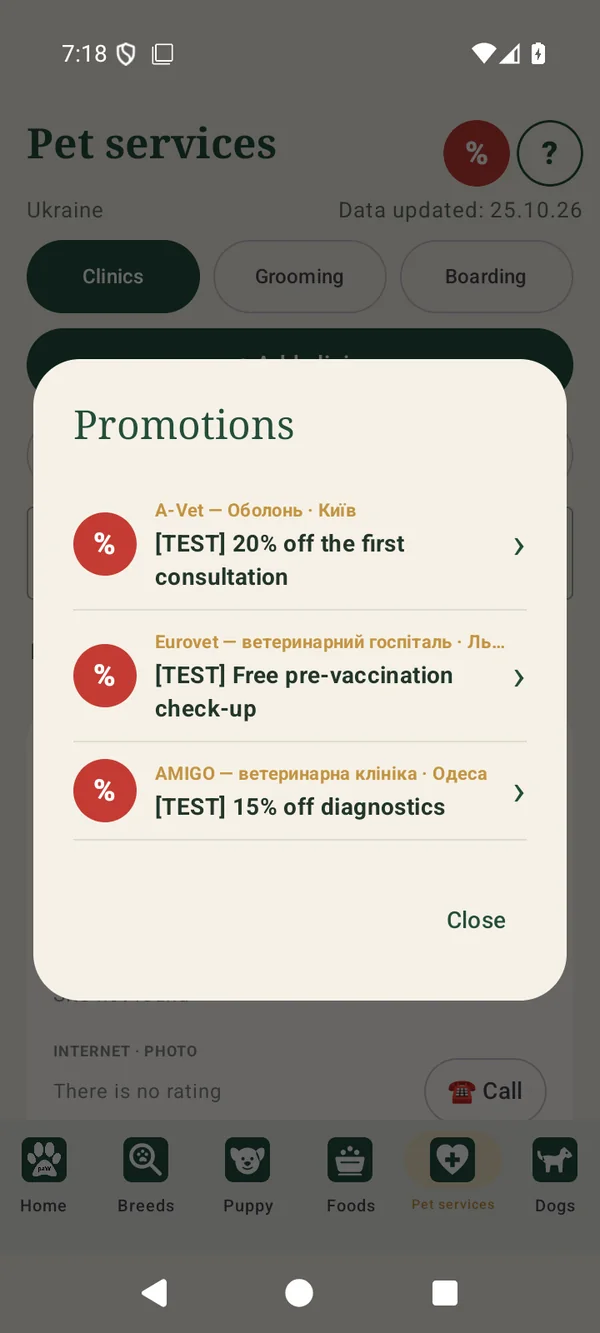
Pet services or pet stores → %
The percent icon in a directory header opens its promotions. The icon inside a provider card opens offers for that place.
This screenshot contains examples marked [TEST]. They demonstrate the display and are not actual discount commitments from the businesses.
Buttons and actions ↓
Tap the percent icon to see promotions. A red icon means active offers are available. When none are active, there are no offers to display. The question mark opens help for the section itself.
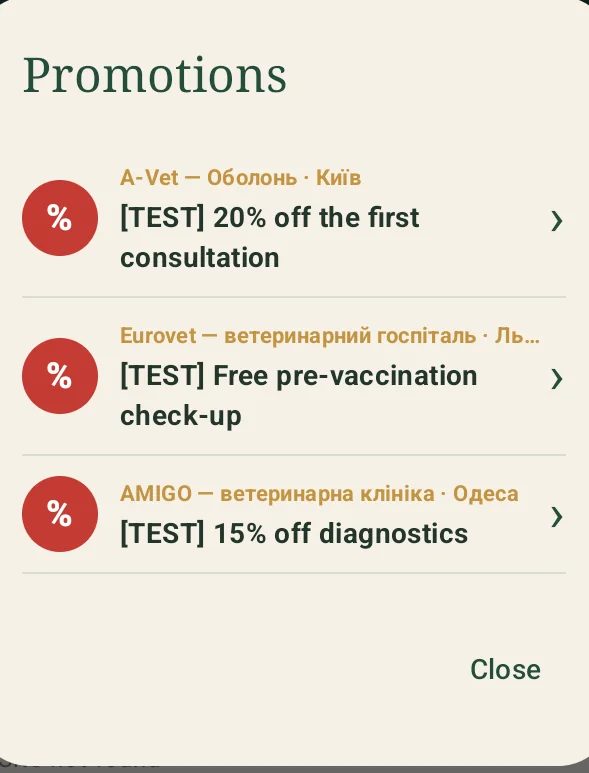
Select an offer or its arrow to read the terms, dates and description, with an image when supplied. The provider link opens its full contact card. Close returns to the previous screen.
Dogs
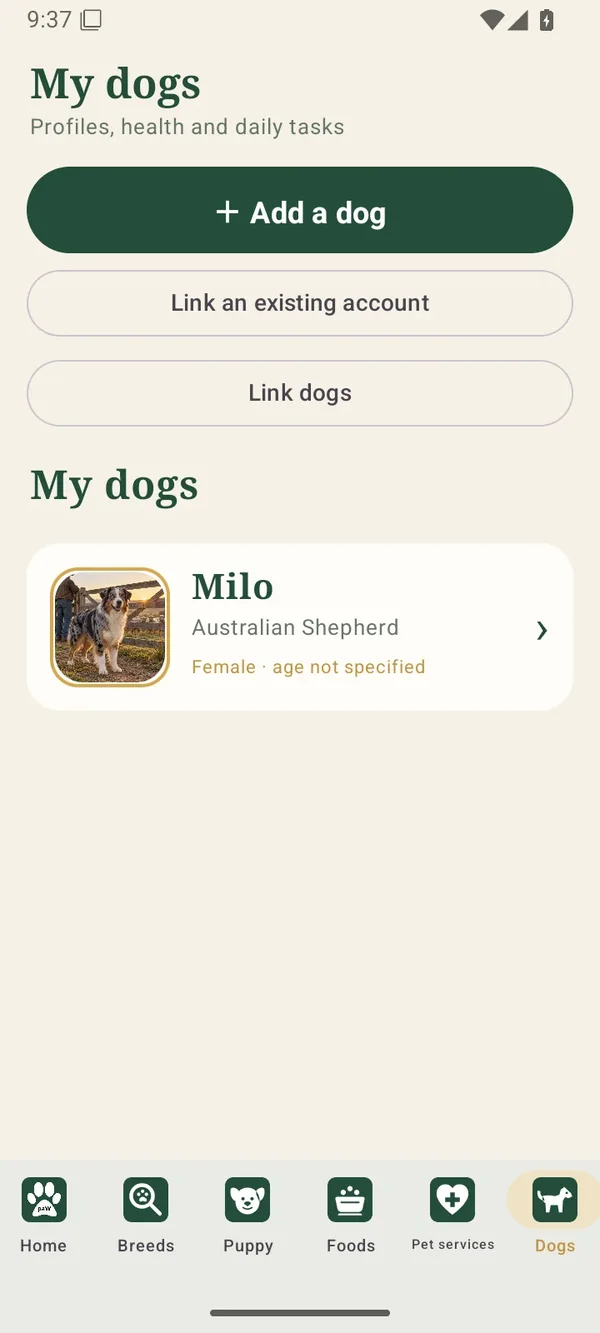
Choose a dog to open daily care, health, training and rewards. This is also where you request family access.
Bottom navigation → Dogs
Each dog has its own profile and progress. An account can have up to five owned dogs.
Linking accounts gives access to another owner’s dogs. Linking dogs synchronizes selected care marks between two profiles.
Buttons and actions ↓
Tap Add a dog, select a breed and complete the form. Name and breed are required. You may add a photo, sex, age or birth date, weight and other details. Review the entries and save the profile.
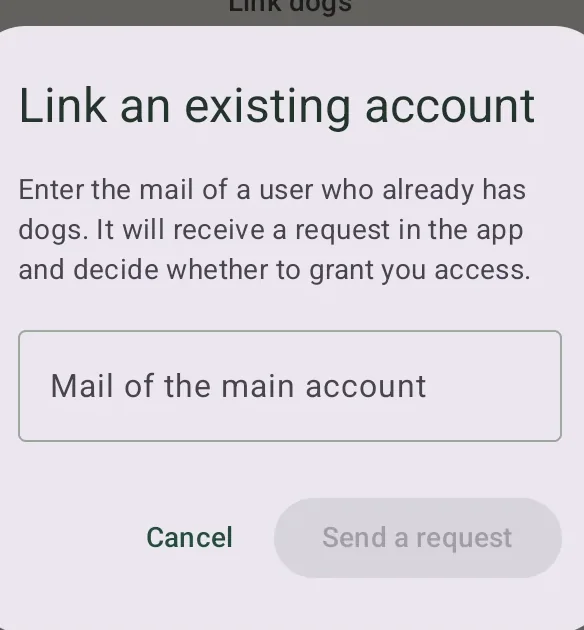
This gives family access to dogs that already have an owner. The person requesting access enters the main owner’s email; the owner decides whether to accept.
After approval, the participant can access the main account’s dogs and help with care. Their own dogs are not shared back automatically. Each person needs a separate account and an internet connection.
In linked account settings, an owner can unlink one or all participants. A participant can leave shared access. After confirmation they lose access to the main owner’s dogs while keeping their own profiles.

Choose two accessible profiles and separately enable shared walks, meals, water or treats. New marks of the selected types are then applied to the linked dog. Disabling the link stops future synchronization for that type.
Dogs → dog card
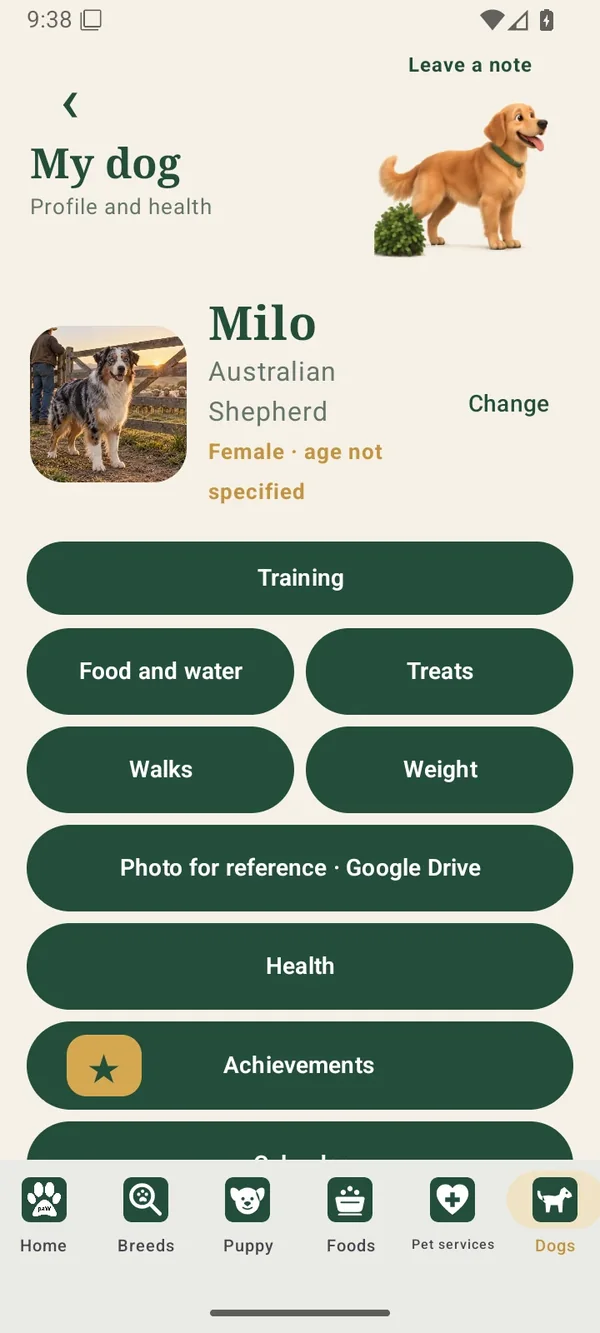
The profile links to daily care, training, health and achievements. Check the dog’s name before making changes.
Each section shows records and progress for the selected dog. The top arrow returns to the previous screen.
Buttons and actions ↓
Tap Change beside the dog’s name, edit the relevant fields and save. The form also contains first-year plan settings and allowed foods. To discard your edits, go back without saving.
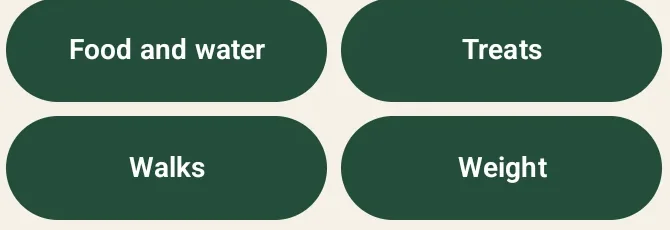
Choose the relevant green profile button. Food and water opens meal schedules and the water mark; Treats opens the daily limit and treat history; Walks opens its schedule and marks. The matching Home counters also open these sections when held.

Weight opens measurements and weigh-in frequency. Enter a positive weight in kilograms and an optional comment, then save. The result appears in history, and multiple measurements let you follow changes.

This opens training for the selected dog: first-year, extra and adult training, clicker guidance and socialization. Each dog keeps separate progress.

Health opens medicines, planned check-ups, medical documents, clinic contacts and the medical PDF. Records belong to the dog named in the profile.
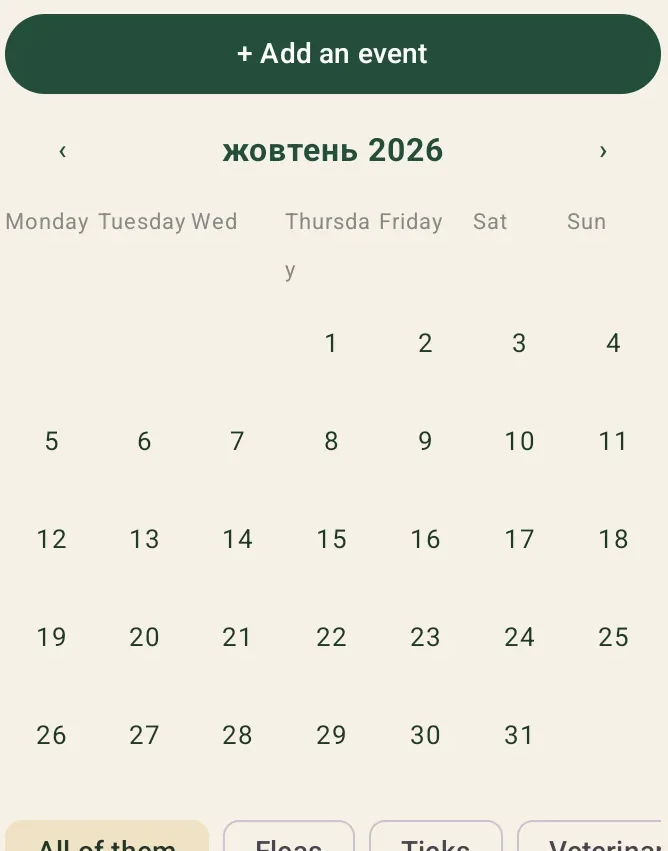
Scroll to Calendar in the dog’s profile. Select a date to view its records, or Add event to create one. Arrows beside the month change the displayed month, and event-type buttons filter it.
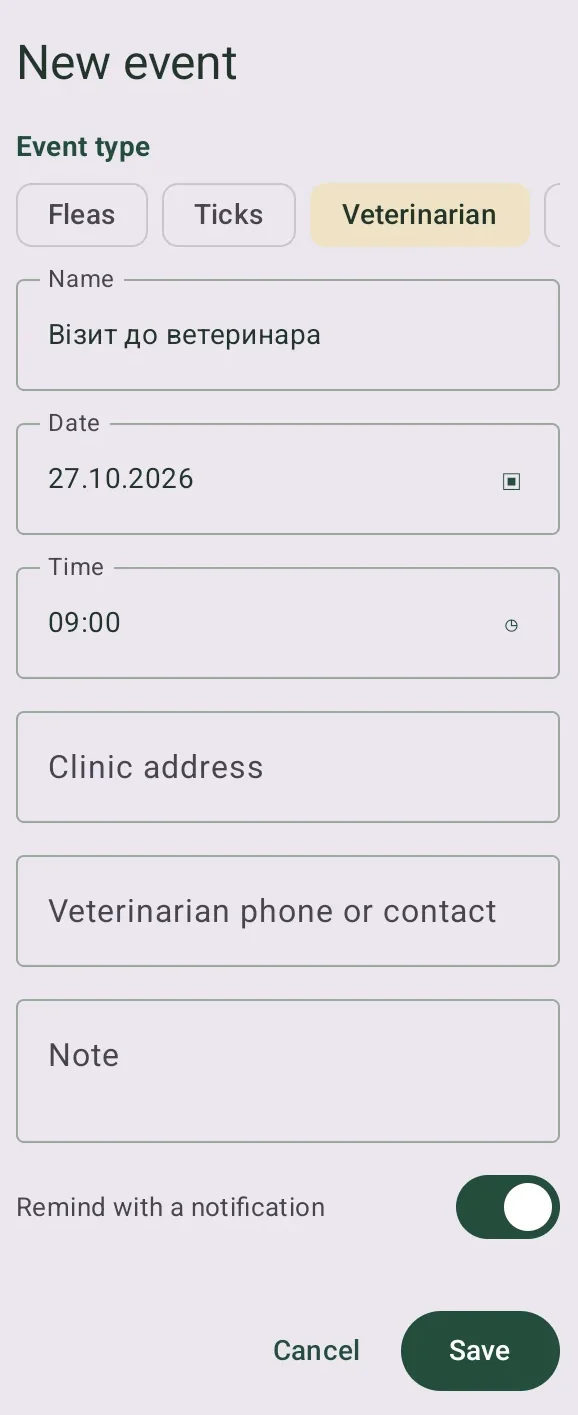
Choose an event type, title, date and time. A visit can include a clinic address and contact; a treatment can include product, dose and instructions. Keep the reminder enabled if wanted, then save. The event appears in the selected dog’s calendar.

In the dog profile, tap Change, scroll down and open Add Allowed Foods. Select up to ten products for this dog and confirm the selection, then Save profile. This is your care list; adding a product does not constitute a veterinary recommendation.
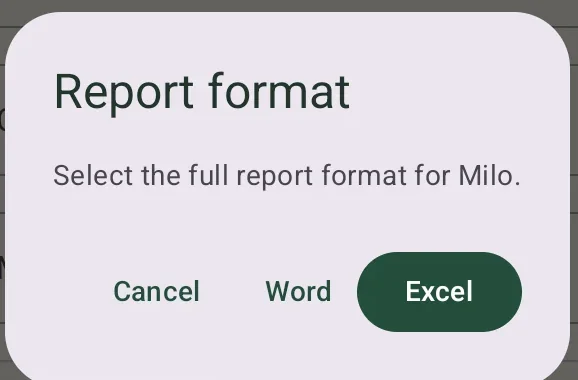
Open the dog profile, tap Change and scroll to Download the report at the bottom. Choose Word for a text document or Excel for a spreadsheet.
Then choose Save · phone / Google Drive to select a destination in the system picker, or Send · email / messenger to share through another app. Cancel closes the dialog without sending. The report belongs to the dog whose profile you opened.
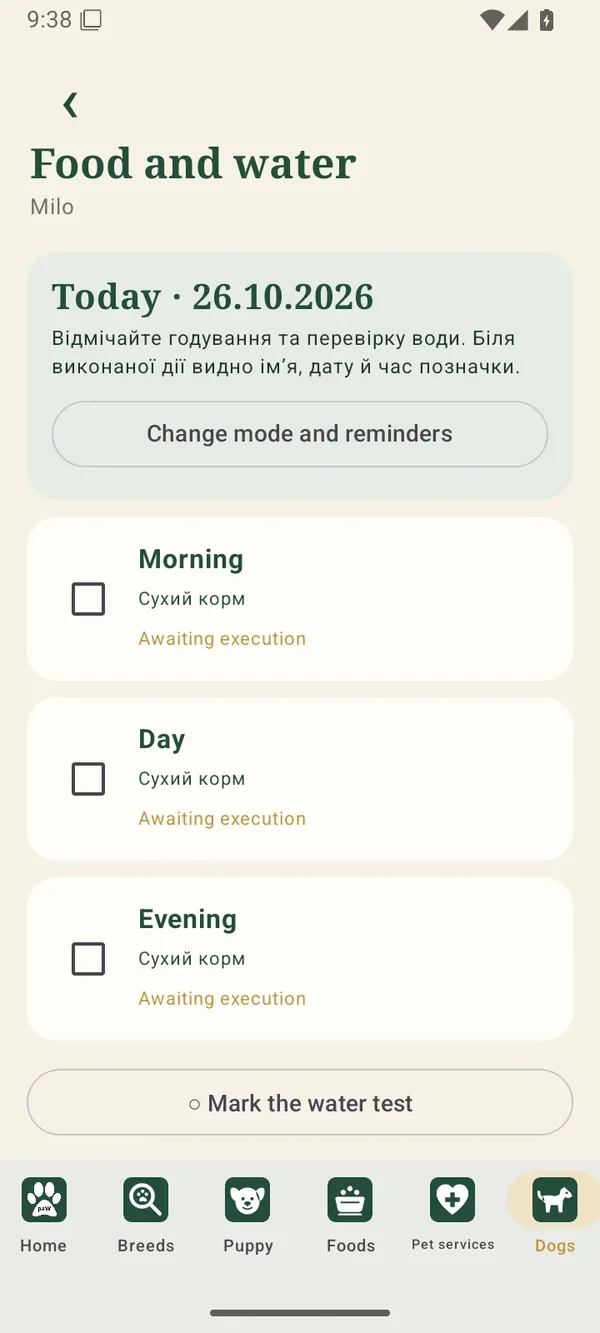
Dogs → profile → Food and water, Walks or Treats
Set schedules separately for each dog. Record actions after performing them; a name and time appear beside the event.
To correct a mistaken mark, open its care section and change it there.
Buttons and actions ↓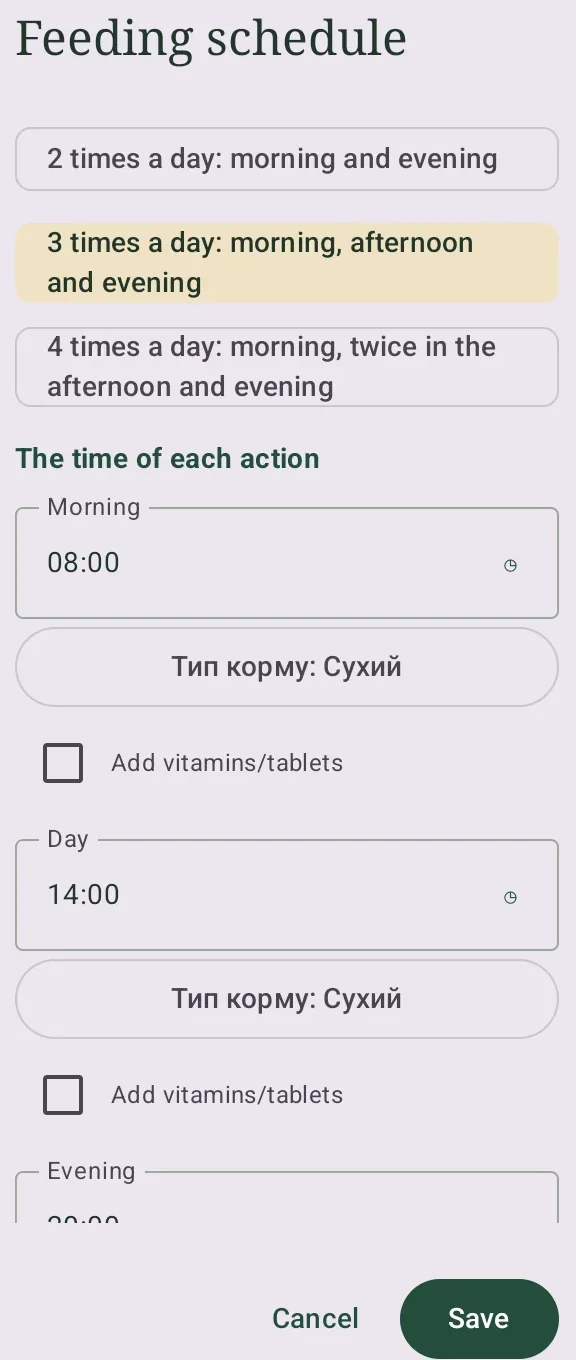
Choose two, three or four meals or walks per day, set each time and enable daily reminders if needed. For meals, select each food type and whether vitamins or tablets are included. Save the schedule.
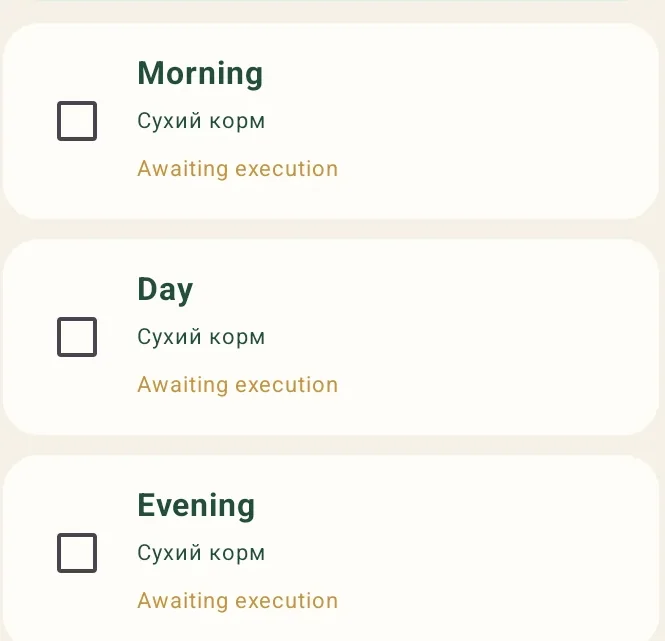
Tick the relevant morning, daytime or evening slot after completing it. Your name and the time appear beside it. Tick again to remove the mark. The Home summary updates, and shared care receives the change after synchronization.

In Food and water, the water-check button is beneath the meals. Tap after checking the bowl to show Water checked, your name and the time. Tap again to remove it. Home does not have a separate water counter.
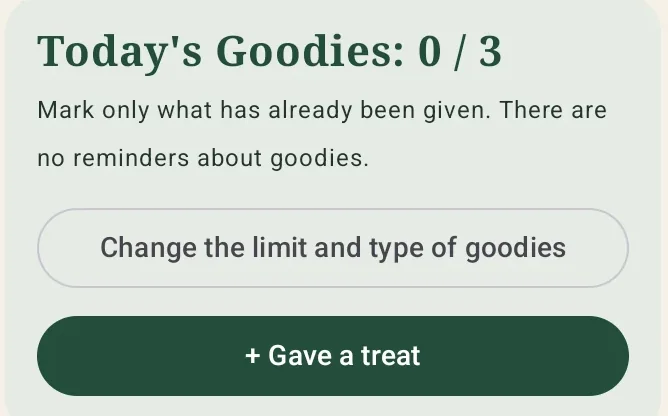
In Treats, set a limit from one to five and optionally name the treat. Given a treat opens an entry for an actual treat. Change on a today entry lets you adjust the note or remove a mistaken record. There are no daily treat reminders.
Dogs → profile → Health
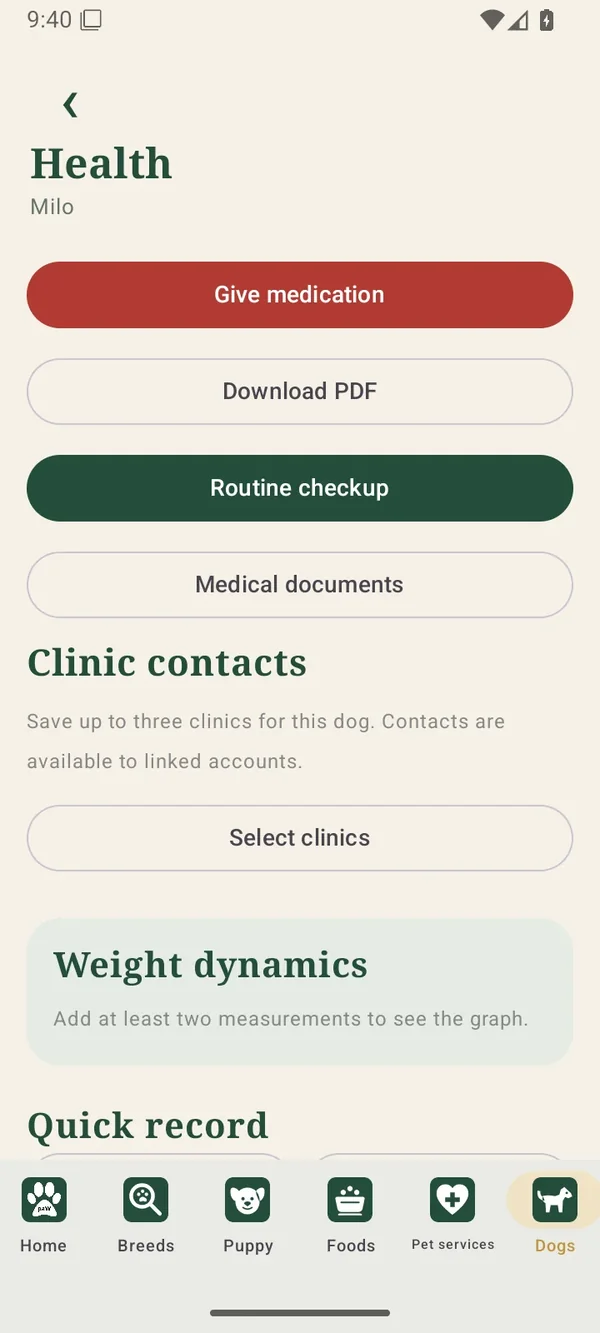
Manage medicines, planned check-ups, documents and clinic contacts here. The PDF report saves medical history for a selected period.
Buttons and actions ↓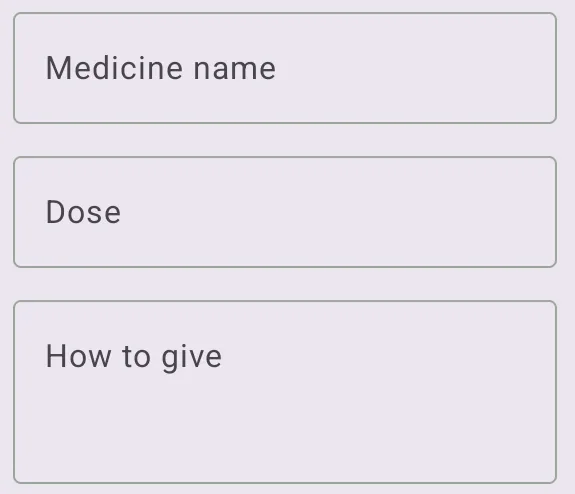
Open medicine tracking, then enter the name, dose, method and schedule. Set up to six times per day or link it to meals. Confirm a dose after giving it; the care history keeps the mark.

Tap Export PDF and select the period when prompted. The report contains the profile and medical history for that period. Save it or share it through the device’s system menu, for example with a vet.

Open Planned check-up to set the next visit and its details. A saved future date also appears in the Home summary. Use the dog’s calendar for other medical events.

Open this dog’s medical documents to keep medical files with its profile. Check the dog’s name before adding a file. Use Back to return.
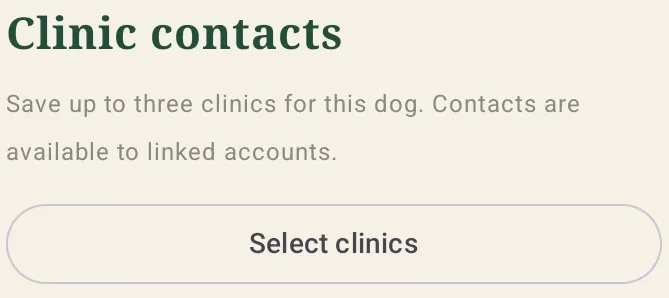
Select Choose clinics to save up to three clinics for the dog. Linked accounts can access these saved contacts so everyone involved in care can find the relevant phone numbers.
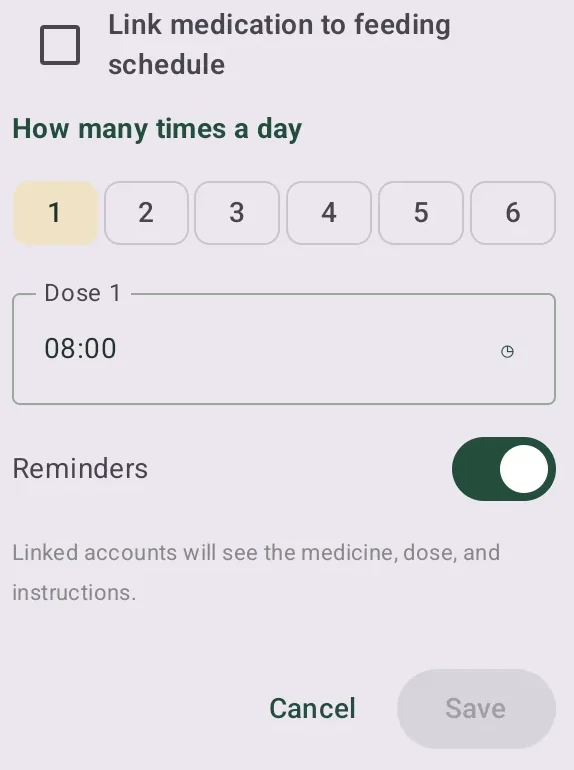
In the medicine form, choose one to six doses and set each time, or link doses to the feeding schedule. Check the reminder switch and save. Enter the name, dose and administration instructions prescribed by the veterinarian. Record a dose after giving it.
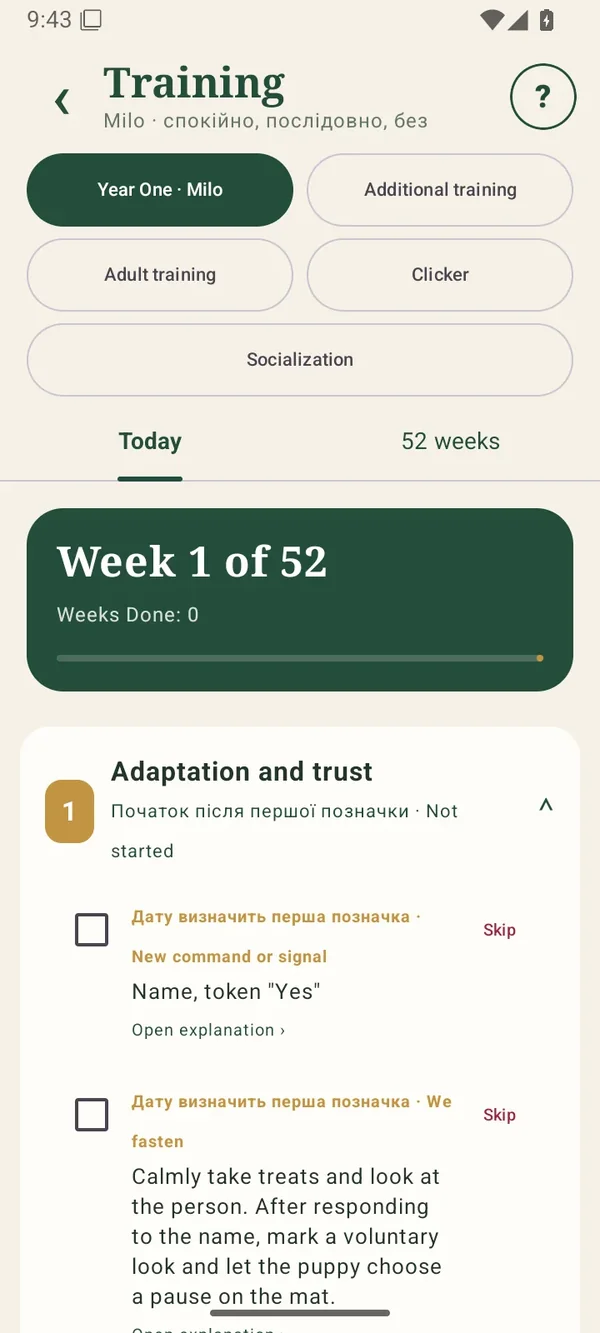
Dogs → profile → Training
Choose a training track at the top. Before doing an exercise, read what to prepare, how to proceed and what counts as success.
A check mark means the task is complete. A skipped task is recorded separately and does not count as completion.
Buttons and actions ↓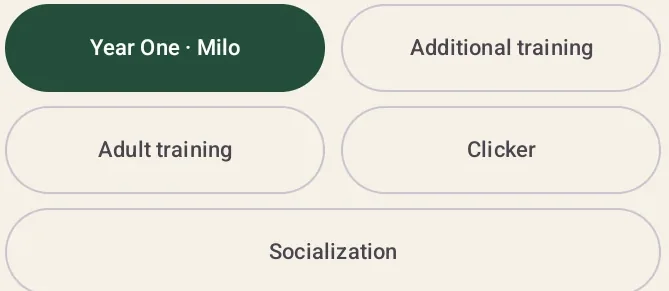
The top buttons switch between first-year, extra and adult training, clicker guidance and socialization. Switching tracks does not transfer completion between programs. Check the dog’s name under the heading.
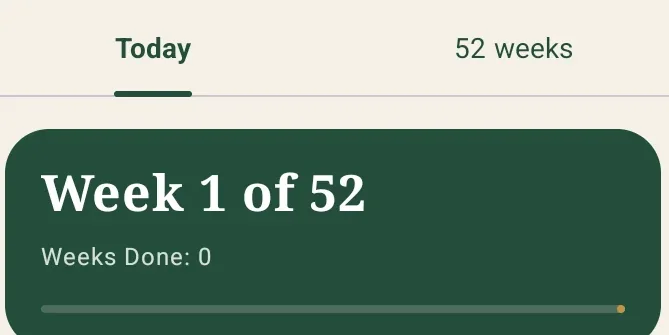
Today shows the current part of the plan; 52 weeks lets you browse its weeks. The first completed exercise establishes the plan’s start. Open each task and read its explanation before a session.
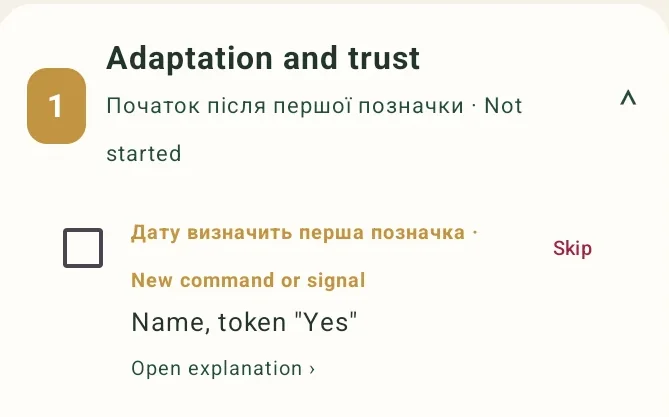
After completing an exercise, tick its checkbox. It counts toward this dog’s progress. The weekly reward requires every exercise in that week completed without skips. Reading the explanation alone does not complete it.

Skip records an exercise as skipped without credit. Restore returns it to the plan. Moving to an available later week can mark unfinished earlier tasks as skipped; those marks can also be restored.
The Clicker tab explains marker training and links to the separate free ThepaW Dog-Clicker app. Read the instructions, then follow the link. The clicking sound is played in that separate app.
Reward every click. A click marks the desired action as it happens. Click-count awards reflect practice; they do not certify that your dog has mastered a skill.
Select Extra training at the top. Open an exercise, read its explanation and practice outside the first-year calendar. Mark it after practice; opening it alone does not complete it.

In Adult training, choose a skill with seven learning steps. Read the preparation and step instructions, practice and check the success criteria. Then tick the step and optionally add a note. Repeat a step over several sessions if needed; you do not have to finish the course in seven calendar days. The reward unlocks after all seven steps are complete. Adult profiles can access the course immediately. Puppy profiles unlock it after 52 weeks and completion of all first-year weeks.
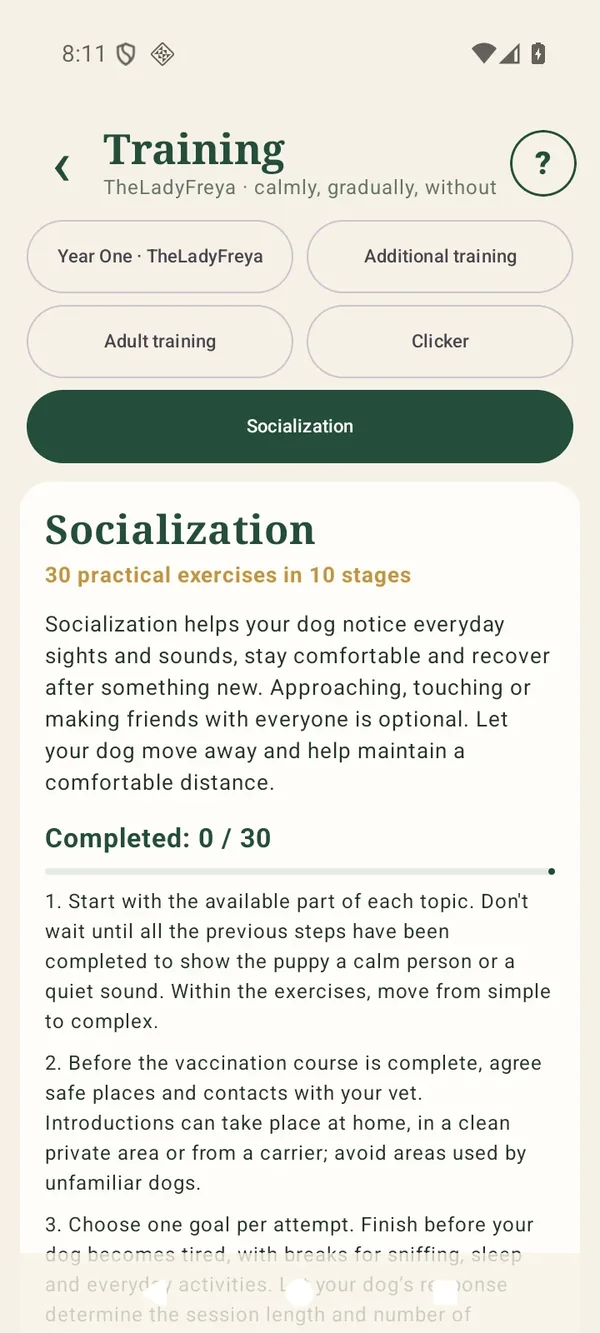
Training → Socialization
Socialization contains 30 practical exercises in 10 sequential stages, with three exercises per stage. The aim is a calm response to new situations. Your dog does not need to approach every person or animal.
Choose a manageable exercise and keep sessions short. Check its success criteria before marking it complete. Increase distance or end the session if your dog is uncomfortable. A stage reward unlocks when all three exercises in that stage are complete.
Buttons and actions ↓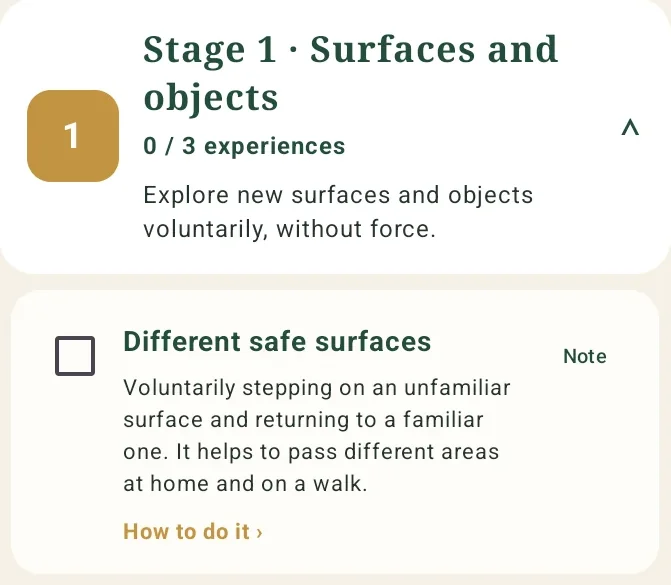
Open Socialization in Training and expand the stage you need. Each stage has three exercises. Before practicing, open How to practice and read the preparation, steps, success criteria and signs that you should stop. Repeat the exercise over as many sessions as your dog needs; reaching a date alone does not mean it is ready for the next stage.

Mark an exercise complete after meeting its success criteria. The counter and bar show how many of the selected dog’s 30 exercises are complete. Note its response, distance and what helped. Return to an easier exercise if the next one is too difficult. Partly completed items from the old plan do not automatically complete a combined exercise; saved notes help you continue practicing.
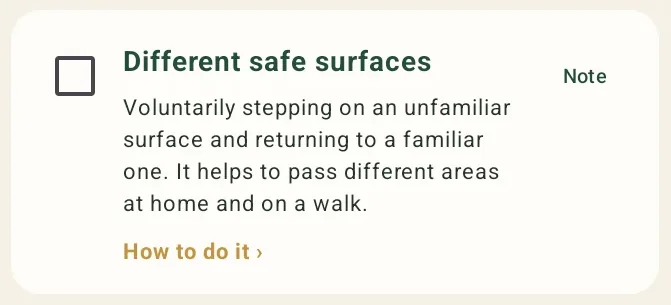
Expand a stage by tapping its heading. An experience name or How to practice opens its detailed instructions. Note opens a field for your observations; save it to keep the text with that experience. The checkbox records completion, not merely reading the instructions.
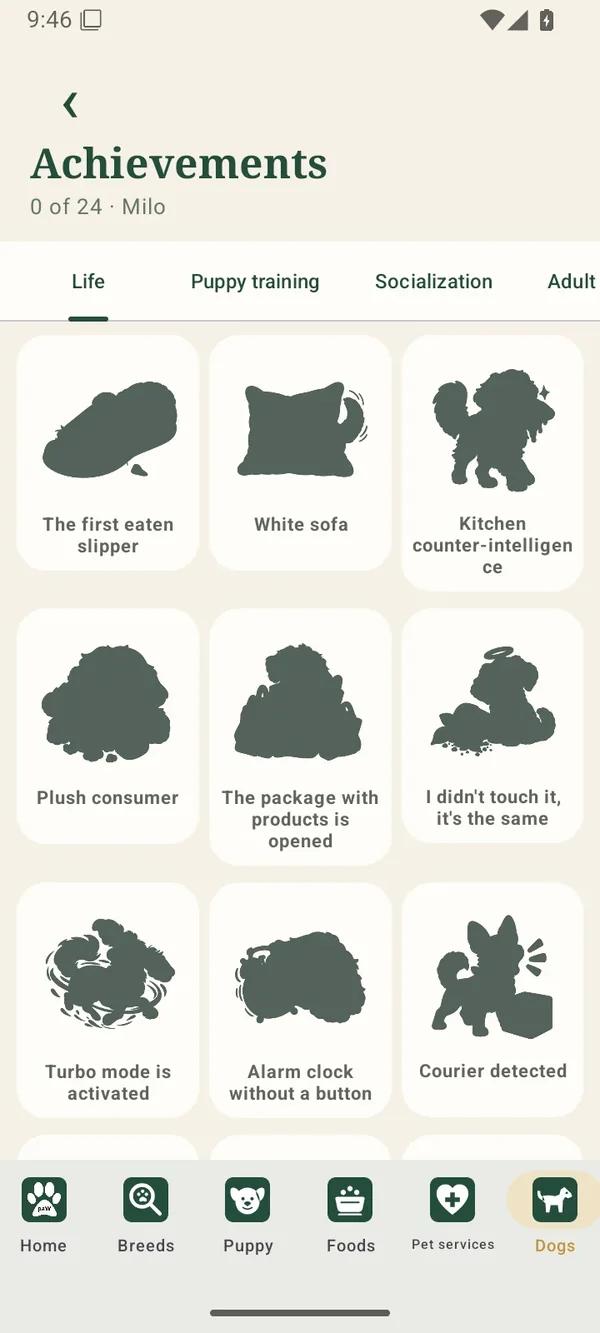
Dogs → profile → Achievements
Switch reward categories to view life events, training and socialization. A silhouette means the reward is still locked.
Tap a card to read its condition. Earned rewards show their illustration and award details.
Buttons and actions ↓
Tabs above the cards switch reward groups. Each dog has separate achievements. The count beneath the heading belongs to the current category and can change when switching tabs.
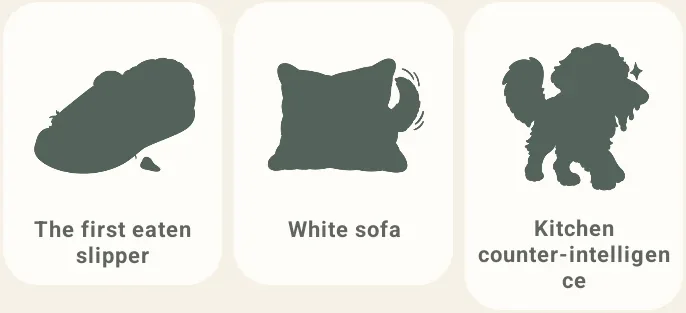
Tap a silhouette or earned illustration to read the required action. Training rewards follow their task and progress rules. Skipped exercises do not count as completed.
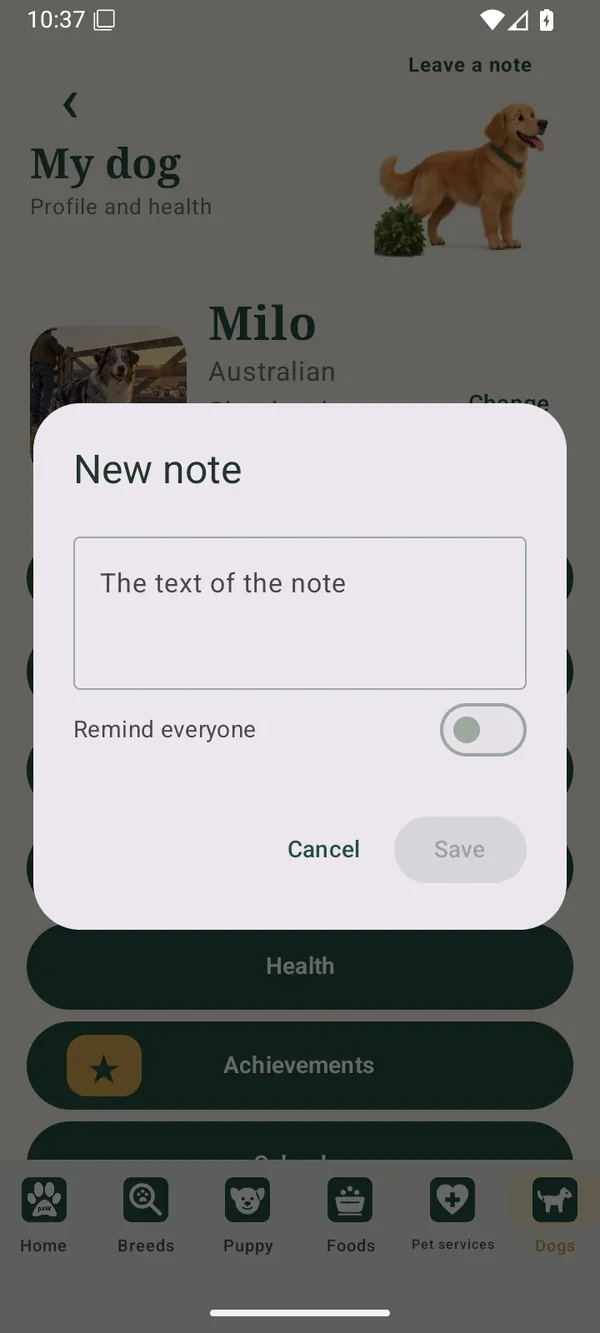
Dogs → profile → dog with a note
The dog illustration at the top right of the profile opens notes. A messages label means another participant has left an unread note.
Tap the illustration to read a message. When there are no unread notes, it opens a new-note form.
Buttons and actions ↓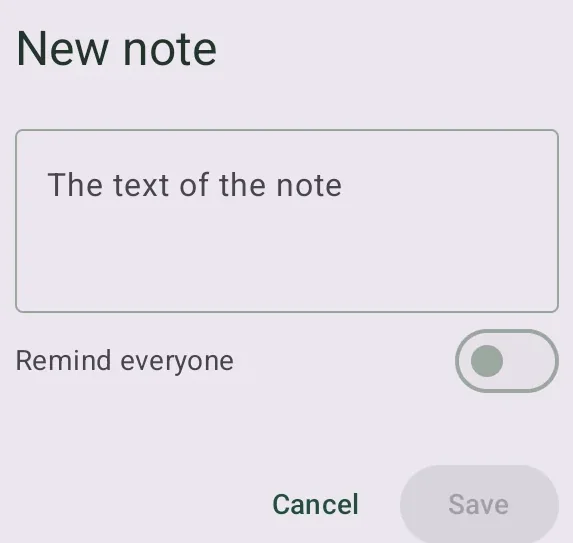
Tap the dog illustration labeled Leave a note, enter up to 1,000 characters and Save. The note belongs to the current dog. Linked participants can see it in that profile after synchronization. Cancel closes the form without saving.

Enable Remind everyone in the note form. Date and time fields appear: choose a future time and save the note. Leave the switch off for a note without a scheduled reminder. If the time has passed, correct it before saving.
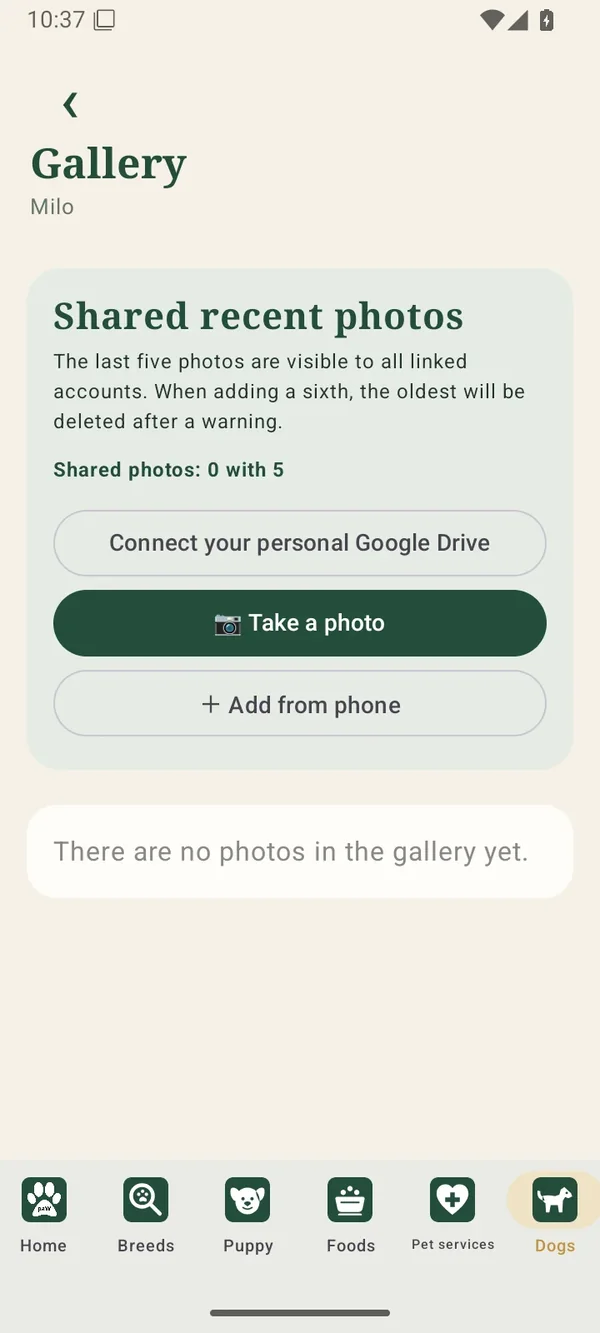
Dogs → profile → Photo for reference · Google Drive
The gallery keeps the dog’s five most recent shared photographs. Linked accounts can view them. Tap a thumbnail to open a photo.
Each participant chooses a personal archive folder. Older photos in that folder are no longer shown in the shared gallery.
Buttons and actions ↓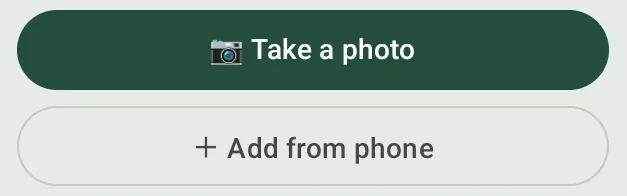
Take a photo opens the camera; allow camera access if requested. Add from phone opens the photo picker. After saving, the image appears among the recent shared photos. Use the top back arrow to return to the profile.
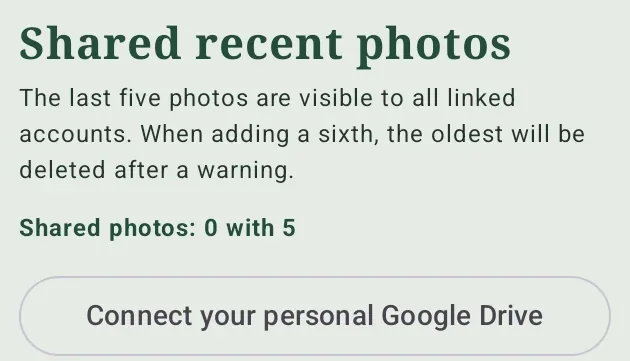
Choose Connect your personal Google Drive and select your folder in the system picker. When a sixth photo is added, the oldest moves to the personal folder of the participant who added the new one and disappears from the shared gallery.
Without a connected folder, exceeding five photos prompts a warning that the oldest will be permanently removed. Cancel keeps the current gallery. Connect a folder before adding more if you want to retain older photos.
Try a shorter query or another term. For example, search for food instead of the full product name.